If you’ve read our SEO foundations for beginners guide, you already know that SEO has three main pillars: on-page, off-page, and technical. This article is the next stop in that cluster, and it’s fully focused on one thing: technical SEO for beginners. By the end, you’ll understand exactly what technical SEO is, why it matters more than most beginners realize, and how to start fixing the technical side of your own WordPress website, step by step, in plain English.
Let’s be honest, “technical SEO” sounds scary. The moment people hear words like crawl budget, canonical tags, or schema markup, they assume it’s only for developers. It isn’t. I’m going to explain every technical concept the same way I’d explain it to a friend over coffee, using WordPress examples you can actually apply today.
What Is Technical SEO?
Technical SEO is the process of optimizing your website’s backend and infrastructure so that search engines like Google can easily crawl, understand, and index your pages. Where on-page SEO focuses on content (titles, keywords, headings) and off-page SEO focuses on authority (backlinks, mentions), technical SEO focuses on the plumbing of your website, the stuff visitors never see, but search engines care about deeply.
Think of your website like a house. On-page SEO is the interior decoration. Off-page SEO is your reputation in the neighborhood. Technical SEO is the foundation, wiring, and plumbing. If that’s broken, it doesn’t matter how nice the furniture looks.
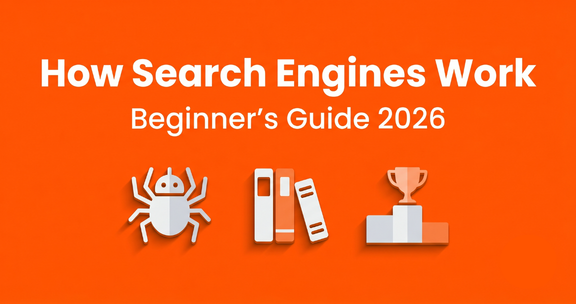
If you haven’t already, it’s worth reading our guide on how search engines work before this one, since technical SEO is really about optimizing that exact crawl-index-rank process for your own site.
Why Technical SEO Is Important for Beginners
Most beginners spend all their energy writing blog posts and completely ignore the technical side. Here’s the problem: if Google’s bots can’t crawl your site properly, or if your pages load slowly on mobile, your beautifully written content may never even get indexed. Let alone rank.
Technical SEO matters because it directly affects:
- Crawling — whether search engine bots can even find your pages
- Indexing — whether those pages get added to Google’s database
- User experience — whether real visitors stay or bounce
- Rankings — Google openly uses page speed and mobile-friendliness as ranking factors
- Trust — HTTPS and clean site architecture signal a professional, safe website
A technical SEO guide for beginners isn’t optional reading, it’s the difference between a blog that grows and a blog that quietly gets ignored by Google, no matter how good the writing is.
How Search Engines Crawl and Index Your Website
Before fixing anything technical, you need to understand the process happening behind the scenes:
- Crawling — Google sends out automated programs called “search engine bots” (or spiders) that follow links across the web, including yours.
- Indexing — Once a bot visits a page, Google analyzes it and decides whether to store it in its massive index — essentially a giant library of web pages.
- Ranking — When someone searches a query, Google pulls relevant pages from that index and ranks them based on hundreds of signals.
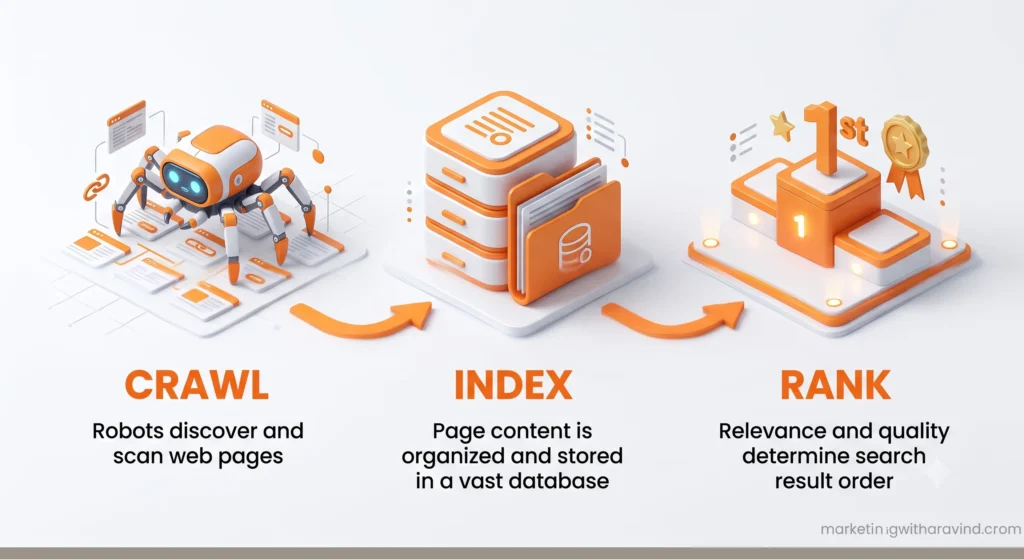
Technical SEO exists to make steps one and two as smooth as possible. If bots can’t crawl your site, or if pages are blocked from indexing by accident, you never even get a chance to compete in step three. We cover this crawl-index-rank cycle in much more depth, with diagrams, in our how search engines work guide, it pairs perfectly with this technical seo guide.
The Key Elements of Technical SEO (Explained Simply)
This is the core of any technical seo checklist. Let’s go through each element one at a time, with beginner-friendly examples.
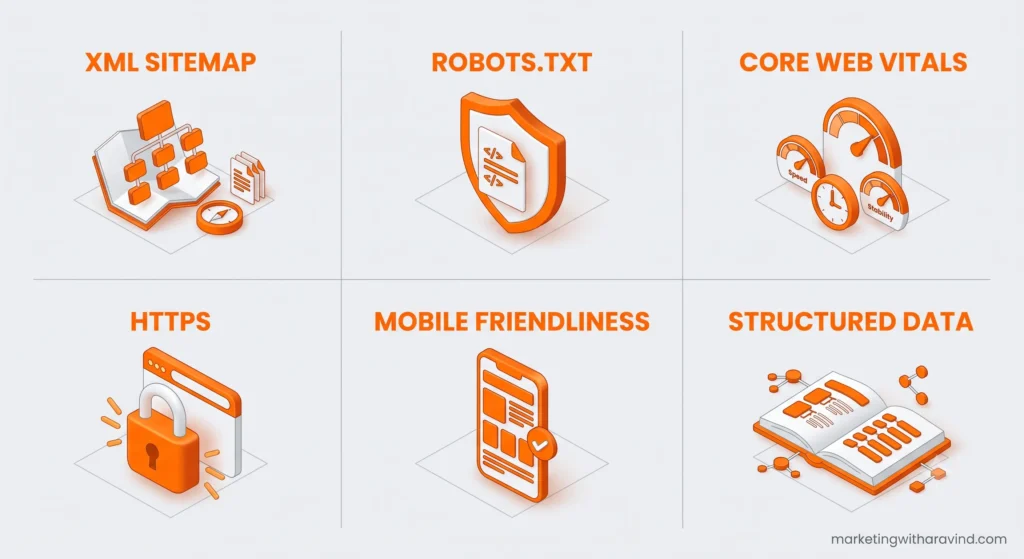
1. XML Sitemap
An XML sitemap is a file that lists every important page on your website, so search engines know exactly what exists and where to find it. Think of it as a table of contents you hand directly to Google.
If you’re using Rank Math on WordPress (like we are), your XML sitemap is generated automatically. You can usually find it at yourdomain.com/sitemap_index.xml. For beginners, the action item is simple: submit this sitemap URL inside Google Search Console so Google always has an up-to-date map of your site.
2. Robots.txt
Your robots.txt file tells search engine bots which parts of your website they’re allowed to crawl and which parts they should skip, like admin pages, login pages, or duplicate archive pages that don’t need to be indexed.
A basic WordPress robots.txt usually allows crawling of your content while blocking access to /wp-admin/. Getting this file wrong (accidentally blocking your entire site) is one of the most common, and most damaging, mistakes beginners make.
3. Core Web Vitals
Core Web Vitals are a set of specific metrics Google uses to measure real-world user experience:
- Largest Contentful Paint (LCP) — how fast your main content loads
- Interaction to Next Paint (INP) — how quickly your site responds to clicks and taps
- Cumulative Layout Shift (CLS) — how much your page visually “jumps around” while loading
You can check your own scores for free using Google PageSpeed Insights. For beginners, focus on compressing images and choosing a lightweight theme (Kadence, for example) to keep these scores healthy.
4. Page Speed
Page speed is closely tied to Core Web Vitals, but it deserves its own mention because it affects both rankings and bounce rate. A slow website loses visitors before they even see your content. Common speed fixes for WordPress beginners include compressing images, using a caching plugin, and choosing a fast, minimal theme.
5. Mobile Friendliness
Google uses mobile-first indexing, meaning it primarily looks at the mobile version of your site to decide how to rank you, even for desktop searches. If your site isn’t responsive on phones, you’re fighting an uphill battle. Most modern WordPress themes, including Kadence, are mobile-responsive by default, but you should still manually test your pages on a real phone.
6. HTTPS
HTTPS encrypts the connection between your website and your visitors. Google has confirmed HTTPS as a ranking signal, and browsers now visibly flag non-HTTPS sites as “Not Secure,” which destroys trust instantly. If you’re on Hostinger, HTTPS (via a free SSL certificate) is usually enabled by default, but it’s worth double-checking that every page loads with the padlock icon.
7. Canonical Tags
A canonical tag tells Google which version of a page is the “original” when similar or duplicate content exists at multiple URLs. This commonly happens with WordPress category pages, tag pages, or URL parameters. Rank Math automatically sets canonical tags for you, but it’s still useful to understand what they’re doing behind the scenes so you don’t accidentally create conflicting signals.
8. Structured Data (Schema Markup)
Structured data, also called schema markup, is extra code added to your pages that helps Google understand exactly what your content is about, a recipe, an FAQ, an article, a product, and so on. This is what powers those rich results you see in search, like star ratings or FAQ dropdowns. Rank Math lets you add schema (like FAQ schema and Article schema) without touching code, which is perfect for beginners.
9. Crawl Budget
Crawl budget is the number of pages Google’s bots will crawl on your site within a given time. For a brand-new beginner blog, this usually isn’t a huge concern yet, but as you scale toward dozens or hundreds of posts, keeping your site clean (no bloated duplicate pages, no broken links) helps Google spend its crawl budget on your actual valuable content instead of wasting it on junk pages.
10. Crawl Errors
Crawl errors happen when Google’s bots try to access a page and fail, usually due to broken links, server errors, or pages that were deleted without a redirect. You can monitor these directly inside Google Search Console under the “Pages” report. Fixing crawl errors quickly keeps your site healthy in Google’s eyes.
11. Website Architecture and Internal Linking
Website architecture refers to how your pages are organized and connected to each other. A clean structure, like a pillar page (for example, our SEO foundations guide) linking out to cluster posts like this one, helps both users and search engines understand your site’s topics and hierarchy. Strong internal linking passes authority between pages and keeps visitors reading longer, which is great for engagement signals too.
12. URL Structure
A clean URL structure is short, readable, and includes your target keyword. For example, /technical-seo-for-beginners/ instead of /?p=1234. Avoid unnecessary numbers, dates, or special characters in your slugs. WordPress with Rank Math makes it easy to set a clean, keyword-optimized permalink for every post.
13. Duplicate Content
Duplicate content occurs when the same or very similar content appears on multiple URLs, common with WordPress category, tag, and archive pages. This confuses search engines about which version to rank. Canonical tags (mentioned above) are the main fix, alongside noindexing thin archive pages where appropriate.
14. Redirects and Broken Links
When you delete or rename a page, always set up a 301 redirect to the new URL. Skipping this creates broken links both for users and for Google’s crawlers, which hurts user experience and wastes crawl budget. Rank Math includes a built-in redirection manager, so you never need a separate plugin for this.
Technical SEO on WordPress: What Beginners Should Actually Do
Since this blog runs on WordPress with Rank Math, here’s the beginner-friendly starting checklist specific to that setup:
- Confirm your Rank Math XML sitemap is live and submitted in Google Search Console.
- Check your robots.txt isn’t accidentally blocking important pages.
- Run your homepage and top posts through PageSpeed Insights and note your Core Web Vitals scores.
- Confirm every page loads over HTTPS with no mixed-content warnings.
- Enable FAQ schema (via Rank Math) on posts that include an FAQ section, like this one.
- Set up 301 redirects for any old or deleted URLs, especially after a migration.
- Compress all images before uploading, this is one of the single biggest speed wins for beginners.
- Review Google Search Console weekly for new crawl errors.
How to Do a Basic Technical SEO Audit (Step-by-Step)
You don’t need expensive software to run your first technical SEO audit. Here’s a beginner-friendly process you can follow this week, start to finish:
Step 1: Check your indexing status. Open Google Search Console and look at the “Pages” report under the Indexing tab. This tells you exactly how many of your pages are indexed versus excluded, and why.
Step 2: Submit or confirm your sitemap. Under “Sitemaps” in Search Console, make sure your sitemap_index.xml is listed and shows a “Success” status. If it’s missing, submit it manually, it takes thirty seconds.
Step 3: Test your homepage and top posts in PageSpeed Insights. Run each URL through pagespeed.web.dev and note your Core Web Vitals. If you see a red or orange score, the tool will tell you exactly what’s slowing you down, usually large images or render-blocking scripts.
Step 4: Run a mobile-friendliness check. Open your site on an actual phone (not just a resized browser window) and click through your main pages. Look for text that’s too small, buttons that overlap, or images that don’t resize properly.
Step 5: Crawl your own site with Screaming Frog. The free version lets you crawl up to 500 URLs and instantly flags broken links, missing alt text, duplicate title tags, and redirect chains, all in one report.
Step 6: Review your robots.txt file. Visit yourdomain.com/robots.txt directly in your browser and make sure it isn’t accidentally disallowing important sections of your site.
Step 7: Check for crawl errors weekly. Bookmark the Search Console “Pages” report and get in the habit of checking it every week, especially right after publishing new content or making structural changes to your site.
Running through these seven steps once a month is enough to catch the vast majority of technical SEO issues before they start affecting your rankings.
Why Website Architecture Matters More Than Beginners Think
One element worth expanding on is website architecture, because it’s easy to underestimate. When you’re publishing your first ten or twenty posts, structure doesn’t feel urgent. But as your blog grows toward the 25-post cluster stage and beyond, architecture becomes the backbone that determines whether Google understands your site as a collection of scattered articles or as a genuinely authoritative resource on a topic.
A strong architecture typically looks like a pyramid: one pillar page (broad, comprehensive, like an “SEO Foundations” guide) sitting at the top, with multiple cluster posts underneath it, each one covering a specific subtopic in depth, like this article does for technical SEO specifically. Every cluster post links back up to the pillar, and the pillar links down to every cluster post. This interlinking pattern does two things: it helps visitors naturally discover related content, and it signals to Google exactly which topics your site is an authority on. Over time, this structure compounds, each new cluster post you publish strengthens the entire topic cluster, not just that individual page.
Technical SEO Checklist for Beginners
Use this as a downloadable, repeatable checklist for every site audit:
- [ ] XML sitemap created and submitted to Google Search Console
- [ ] Robots.txt reviewed and not blocking important pages
- [ ] HTTPS enabled sitewide with no mixed content
- [ ] Core Web Vitals checked in PageSpeed Insights
- [ ] Mobile-friendliness tested on a real device
- [ ] Canonical tags verified on key pages
- [ ] Schema markup (FAQ, Article) added where relevant
- [ ] Crawl errors reviewed in Search Console
- [ ] Internal linking structure reviewed (pillar-to-cluster links in place)
- [ ] URL slugs clean, short, and keyword-optimized
- [ ] Duplicate/thin content identified and canonicalized or noindexed
- [ ] Redirects set up for any deleted or moved pages
- [ ] Images compressed and using descriptive alt text
- [ ] Broken links checked and fixed sitewide
Technical SEO vs On-Page SEO vs Off-Page SEO
Beginners often confuse these three categories. Here’s a simple side-by-side comparison:
| Aspect | Technical SEO | On-Page SEO | Off-Page SEO |
| Focus | Site infrastructure & crawlability | Content & keywords on the page | Authority & reputation outside your site |
| Examples | Sitemaps, robots.txt, page speed, HTTPS | Titles, headings, keyword usage, images | Backlinks, guest posts, social mentions |
| Who sees it | Mostly search engine bots | Both users and search engines | Other websites and search engines |
| Tools used | Google Search Console, PageSpeed Insights, Screaming Frog | Rank Math, Yoast SEO | Backlink checkers, outreach tools |
| Beginner priority | High — fix first | High — ongoing | Medium — build over time |
For a deeper breakdown of all SEO categories, see our full guide on the different types of SEO, and once your technical foundation is solid, move on to our on-page SEO basics guide to optimize your content itself.
Common Technical SEO Mistakes Beginners Make
- Blocking the whole site in robots.txt by mistake, especially right after a migration like ours.
- Ignoring mobile testing and assuming “it looks fine on my laptop” is enough.
- Forgetting redirects when changing URLs, which creates broken links and lost rankings.
- Uploading huge, uncompressed images, tanking page speed instantly.
- Never checking Google Search Console, so crawl errors pile up unnoticed for months.
- Skipping schema markup entirely because it “sounds too technical,” even though tools like Rank Math make it a checkbox, not code.
Recommended Tools for Technical SEO
You don’t need to be a developer to fix technical SEO. You just need the right tools:
- Google Search Console — free, essential, shows exactly what Google sees and any crawl errors
- PageSpeed Insights — measures Core Web Vitals and gives specific speed recommendations
- Lighthouse — Chrome’s built-in auditing tool for performance, accessibility, and SEO
- Screaming Frog — a desktop crawler that audits your entire site for broken links, redirects, and duplicate content
- Rank Math — handles sitemaps, schema, canonical tags, and redirects directly inside WordPress
Here’s how to think about when to use each one. Google Search Console should be checked weekly; it’s your direct line to how Google actually sees your site, including indexing status and crawl errors. PageSpeed Insights and Lighthouse are best used whenever you make a design change, add a new plugin, or notice your site feels slower than usual, since both give you an instant before-and-after comparison. Screaming Frog is more of a monthly or quarterly tool; you run a full site crawl, export the report, and work through any broken links, duplicate titles, or missing alt text it flags. Rank Math, meanwhile, is something you’re interacting with constantly, since it’s built directly into your WordPress editor and handles the technical groundwork (sitemaps, schema, canonicals, redirects) automatically as you publish.
For a broader list of beginner-friendly SEO tools beyond just the technical side, check out our SEO tools for beginners guide.
Frequently Asked Questions
What is technical SEO?
Technical SEO is the practice of optimizing a website’s infrastructure including crawlability, indexing, speed, and security so search engines can access and understand it effectively. It sits underneath your content and design, and it’s usually invisible to regular visitors, but it directly determines whether your pages are even eligible to rank in the first place.
Why is technical SEO important?
Without solid technical SEO, search engines may struggle to crawl or index your pages at all, meaning even great content can fail to rank. It’s the foundation everything else is built on you can have perfect keyword research and beautifully written articles, but if Google’s bots can’t properly access your site, none of that content-side effort gets a fair chance to compete in search results.
What are the key elements of technical SEO?
The core elements include XML sitemaps, robots.txt, Core Web Vitals, page speed, mobile-friendliness, HTTPS, canonical tags, structured data, crawl budget, crawl error monitoring, internal linking and site architecture, clean URL structure, and avoiding duplicate content through proper canonicalization.
How do I improve technical SEO on my own website?
Start with the fundamentals: submit your sitemap to Google Search Console, check your robots.txt, run a PageSpeed Insights test, confirm HTTPS is active, and fix any crawl errors you find. From there, work through the full checklist above one item at a time rather than trying to fix everything in a single sitting. Technical SEO is a maintenance habit, not a one-time task.
What is website crawling?
Website crawling is the process where search engine bots automatically browse pages by following links, discovering new and updated content across the web.
What is website indexing?
Indexing is when a search engine stores a crawled page in its database, making it eligible to appear in search results.
What is an XML sitemap?
An XML sitemap is a file listing all the important URLs on your site, helping search engines discover and understand your content structure more efficiently.
What is robots.txt in SEO?
Robots.txt is a text file that instructs search engine bots on which pages or sections of your website they should or shouldn’t crawl.
Ready to Start Learning?
Download your free copy of the Digital Marketing Roadmap for Beginners
And begin building your digital marketing skills today.
Conclusion
Technical SEO for beginners doesn’t have to feel overwhelming once you break it into individual, manageable pieces. Start with the checklist above, fix one item at a time, and revisit Google Search Console weekly. Once your technical foundation is solid, everything else you do content, keywords, backlinks. Will actually have a chance to perform the way it should.
If you’re building your SEO knowledge from scratch, go back to our SEO foundations for beginners guide for the full picture, and explore our other guides on how search engines work and on-page SEO basics to keep building your skills, one cluster post at a time.