I still remember the first time I opened a WordPress dashboard. It looked like the cockpit of an airplane, buttons everywhere, menus I didn’t understand, and a nagging fear that I’d break something just by clicking the wrong thing. If you’re feeling that same way right now, take a breath. You’re in the right place.
This complete WordPress guide for beginners is part of our growing collection of beginner marketing tutorials here on Marketing With Aravind. If you haven’t already, it pairs nicely with our digital marketing basics for beginners guide, since your website is really the home base for everything else you’ll do online.
By the end of this guide, you’ll understand what WordPress actually is, how it’s different from wordpress.com, how to install it, how to move around the dashboard without panic, and how to get your first pages ready for visitors, the beginner-friendly way, without any confusing jargon.
What Is WordPress? (In Plain English)
WordPress is free software that lets you build and manage a website without writing code. Think of it like a digital notebook with superpowers. You type your content into boxes, arrange them however you like, and WordPress turns it into a real, working website that anyone in the world can visit.
It started in 2003 as a simple blogging tool. Today, it powers a huge share of all websites on the internet, everything from personal blogs to news outlets to online stores. That popularity matters for you as a beginner, because it means:
- Thousands of free tutorials and forums exist for almost every problem you’ll run into
- Plugins exist for nearly anything you want to add (contact forms, SEO tools, galleries)
- Themes let you change your entire design in minutes, without touching code
- It’s beginner-friendly first, and only gets more powerful as your skills grow
If you’re a freelancer, student, or small business owner reading this, WordPress is very likely the right starting point, and this guide will show you exactly why.
Why So Many Beginners Choose WordPress First
Before we go further, it helps to understand why WordPress keeps coming up as the recommended starting point in almost every beginner wordpress guide you’ll find online. It isn’t hype, it comes down to three practical reasons.
First, WordPress separates your content from your design. You can completely change your theme one day without losing a single blog post, because the words and images you’ve written are stored independently from how they’re displayed. Second, WordPress is open-source, which means thousands of developers are constantly building plugins that solve specific problems SEO, forms, speed, security, so you rarely have to reinvent anything yourself. Third, the sheer size of the WordPress community means almost every error message, confusing setting, or “how do I do this” question already has an answer waiting somewhere online.
For students and freelancers especially, there’s a fourth reason worth mentioning: WordPress skills transfer directly into freelance income. Small businesses constantly need help setting up or maintaining their WordPress sites, and once you’ve been through this guide, you’ll already understand more than most business owners do about their own websites.
WordPress.org vs WordPress.com Don’t Get This Confused
This is the single most confusing thing for every beginner, so let’s clear it up immediately.
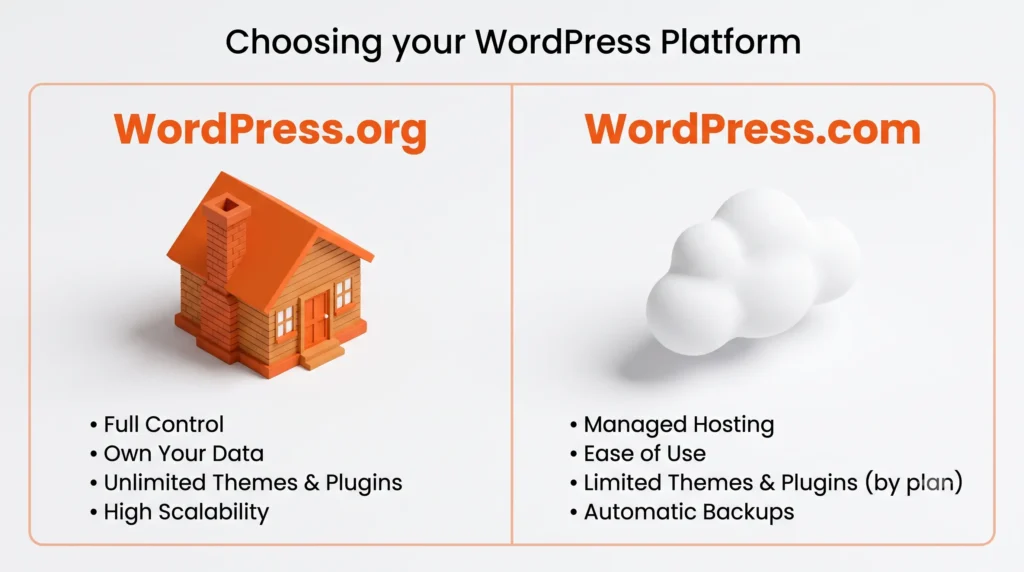
WordPress.org is the free, self-hosted software. You download it, install it on your own hosting account (like Hostinger), and you own everything your content, your design, your data. This is the version professionals and serious bloggers use, and it’s what we use for Marketing With Aravind.
WordPress.com is a hosted service built on top of that same software. It’s easier to start with, but the free plan is limited, and moving away from it later (migrating your content, as we did) takes extra work.
| Feature | WordPress.org (Self-Hosted) | WordPress.com (Hosted) |
| Cost | Free software + hosting cost | Free plan available, paid plans for more |
| Ownership | You own everything | Platform has more control |
| Themes & Plugins | Unlimited, any theme/plugin | Limited on free/lower plans |
| Monetization (Ads) | Full control | Restricted on lower plans |
| Best For | Bloggers, businesses, freelancers | Personal hobby blogs |
| Learning Curve | Slightly higher, worth it | Easier to begin |
If your goal is to grow a serious blog, build an audience, and eventually monetize through ads, affiliate marketing, or your own products, WordPress.org is the clear long-term choice. It’s also the version this entire guide focuses on.
Is WordPress Free?
The WordPress software itself is completely free. What you pay for are two supporting pieces:
- A domain name — your website’s address (like marketingwitharavind.com)
- Web hosting — the server space where your website actually lives
Together, these usually cost a modest amount per year, especially with beginner-friendly hosts running discounted first-year plans. Everything beyond that themes, security, SEO has free options that are genuinely good enough to launch with.
What You Need Before You Start
Before installing anything, get these three things sorted:
- A domain name. Choose something short, memorable, and related to your niche. Avoid hyphens and numbers where possible, they’re harder for people to remember and type correctly.
- A hosting account. Look for one-click WordPress installs, good customer support, and solid uptime. Hostinger, for example, offers beginner-friendly plans with WordPress pre-configured, which removes a lot of the early technical friction.
- A clear niche. Decide who you’re writing for and what problem you’re solving for them. This shapes every decision after this point, from your homepage layout to your first ten blog post ideas.
It’s worth resisting the temptation to buy the cheapest possible hosting plan purely on price. A slow host quietly damages both your visitor experience and your SEO rankings, since page speed is one of the ranking factors search engines consider. Spend a little time reading real reviews before committing to a full year.
How to Install WordPress (Step-By-Step)
Most modern hosting providers make this part surprisingly simple:
- Log in to your hosting dashboard after purchasing your hosting and domain.
- Find the “Install WordPress” or “Website” option. Most hosts have a one-click installer.
- Choose your domain from the dropdown and confirm the installation.
- Set your admin username and password. Choose something secure — avoid “admin” as your username.
- Wait for the installation to complete. This usually takes just a few minutes.
- Log in to your new dashboard using the URL yourdomain.com/wp-admin.
That’s genuinely all it takes on the technical side. The real learning begins once you’re inside.
Understanding the WordPress Dashboard
Once you log in, you’ll land on the WordPress dashboard, your website’s control room. Here’s what the main sections mean, in beginner terms:
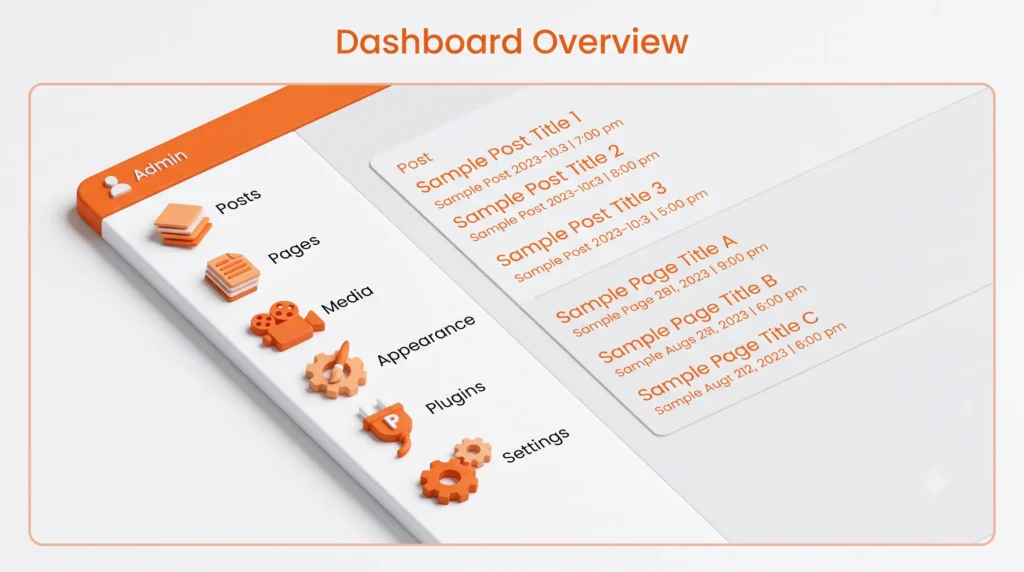
- Posts — your blog articles live here
- Pages — static content like Home, About, and Contact
- Media — every image, video, or file you’ve uploaded
- Comments — reader comments waiting for approval
- Appearance — your theme, menus, and widgets
- Plugins — extra tools and features you install
- Users — anyone with access to your site
- Settings — the core configuration of your website
- Rank Math (or your SEO plugin) — appears once installed, handling your on-page SEO
Spend ten minutes clicking through each of these without changing anything. Familiarity removes fear faster than any tutorial.
Posts vs Pages: A Distinction Every Beginner Needs
One of the earliest points of confusion in any beginner wordpress guide is the difference between a “Post” and a “Page,” and getting this right early saves a lot of reorganizing later.
Pages are for static, rarely-changing content your Home page, About page, Contact page, Privacy Policy, and similar sections. They usually don’t appear in date order and aren’t meant to be part of an ongoing content stream.
Posts are your blog articles — the content you’ll be publishing regularly, in reverse chronological order, to attract search traffic and build authority in your niche over time. When you set up your Reading Settings to show a static homepage with a separate “Posts page,” you’re telling WordPress exactly how to organize this distinction, which keeps your site clean as it grows into dozens or hundreds of articles.
Setting Up Navigation Menus
Your menu is often the very first thing a new visitor interacts with, so keep it simple. A clean beginner-friendly menu structure usually looks like: Home, Blog, About, Contact in that order, so visitors land somewhere familiar and can find your content and contact details without digging.
Under Appearance → Menus, you can drag and drop your pages into the order you want, and assign that menu to your header location. Avoid the temptation to cram every page and category into the menu right away; a cluttered navigation bar overwhelms new visitors before they’ve read a single word.
Choosing a WordPress Theme
Your theme controls how your website looks. As a rule, prioritize themes that are lightweight, well-coded, and built for speed over ones that just look flashy in a demo.
Kadence is a strong beginner-friendly choice because it’s fast, flexible, and works beautifully with the built-in Gutenberg editor no need for heavy page builders like Elementor, which can slow your site down and complicate long-term maintenance.
When choosing a theme, check for:
- Speed — test the demo with a page speed tool before deciding
- Mobile responsiveness — most of your visitors will be on phones
- Compatibility with Gutenberg — avoids clunky, plugin-heavy workflows
- Regular updates — an abandoned theme becomes a security risk
Gutenberg Editor Basics
Gutenberg is WordPress’s native block editor, and it’s the friendliest way for beginners to build pages and posts. Every piece of content. A paragraph, an image, a heading, a button — is its own “block” that you can move, style, and arrange freely.
To get comfortable fast:
- Create a new post or page
- Add a Paragraph block and type some text
- Add a Heading block to structure your content
- Add an Image block and upload a photo
- Try a Columns block to place content side by side
Within an hour of practice, most beginners feel confident arranging a full page.
Installing Essential Plugins
Plugins add functionality without needing to code. For a beginner blog, a lean, essential plugin stack is healthier for performance than installing everything you find. A solid starting set includes:
- Rank Math SEO — handles meta titles, descriptions, sitemaps, and schema
- Site Kit by Google — connects Google Analytics and Search Console
- WPForms Lite — builds simple, reliable contact forms
- UpdraftPlus — automatic backups so you never lose your work
- A caching plugin — once compatibility issues are resolved, this improves load speed
Install only what you need. Every extra plugin is one more thing that can slow your site down or conflict with an update.
A quick word on each of these, since beginners often install plugins without fully understanding what they do. Rank Math walks you through a setup wizard the first time you activate it, connecting your site to Google Search Console and generating your XML sitemap automatically, this is the plugin that will handle your meta titles, meta descriptions, and schema markup going forward. Site Kit by Google is what lets you view your Google Analytics traffic data directly inside your WordPress dashboard, instead of switching between tabs constantly. WPForms Lite gives you a free, drag-and-drop way to build a working contact form in minutes, which is all a beginner site typically needs. And UpdraftPlus quietly backs up your entire site on a schedule you set, storing copies either on your host or a connected cloud drive, so a single mistake or a hacked plugin never means starting completely over.
WordPress SEO Basics for Beginners
SEO is what helps people actually find your website on Google. WordPress makes this far easier than most platforms because of plugins like Rank Math, but the fundamentals still matter. For a deeper foundation, our SEO foundations for beginners guide breaks this down further, and our on-page SEO basics article covers the exact elements below in more detail.
At a beginner level, focus on:
- Meta titles and descriptions — written for humans first, keywords second
- Clean URL slugs — short and descriptive, not long strings of random characters
- Header structure (H1, H2, H3) — helps both readers and search engines understand your content
- Internal linking — connecting your own articles together, the way this guide links to others
- Image alt text — describes images for accessibility and search engines
- Page speed — a slow site quietly pushes visitors away before they read a word
If you want to go further into the different SEO approaches available, our types of SEO article and our roundup of SEO tools for beginners are both natural next reads once you finish here.
WordPress Security and Backups
A website without backups is a website one mistake away from disappearing. Before you publish your first post, set up:
- Automatic backups (UpdraftPlus is a reliable free option)
- Strong login credentials — avoid “admin” as a username, use a password manager
- Regular WordPress core, theme, and plugin updates
- A security plugin or your host’s built-in firewall protection
None of this needs to be complicated. Ten minutes of setup now saves you from a potential disaster later.
Customizing Your Site: Logo, Colors, and Fonts
Once your structure is in place, customization is what makes your site feel like yours instead of a default demo. Inside Appearance → Customize (or the Kadence Customizer, depending on your theme), you can typically set:
- Your logo, uploaded as a transparent PNG for a clean, professional look
- Your primary and secondary brand colors, applied consistently across buttons and headings
- Your site’s font pairing keeping it to one or two fonts maximum keeps pages feeling calm rather than cluttered
- Your footer text and links, which should always reflect your live domain rather than any old staging or migration address
Consistency here matters more than perfection. A simple, consistent orange-and-white theme with one clean font will always outperform a visually “busy” homepage that tries to do too much at once.
Your First Blog Post: Where WordPress Meets Blogging
Once your site structure, theme, and plugins are ready, the real work begins: publishing your first blog post. This is where your WordPress setup and your content strategy meet. If you haven’t yet, it’s worth reading our dedicated blogging for beginners guide alongside this one, since it walks through keyword research, outlining, and publishing workflow in more depth than we can cover here.
Inside WordPress itself, a well-formatted first post should include a clear H1 title, logically nested H2 and H3 subheadings, short paragraphs of two to three sentences, at least one relevant image with descriptive alt text, and a natural link back to a related page on your own site. Getting this rhythm right on your very first post makes every post after it faster to write.
WordPress vs Other Website Builders
Beginners often ask how WordPress compares to simpler drag-and-drop builders like Wix or Squarespace. Here’s an honest comparison:
| Factor | WordPress.org | Wix / Squarespace |
| Flexibility | Extremely high | Limited to platform tools |
| SEO Control | Full control via plugins | Basic, less flexible |
| Ownership | You own your site fully | Platform-dependent |
| Cost Over Time | Lower long-term cost | Can rise with plan upgrades |
| Growth Potential | Scales with your business | Harder to migrate later |
| Learning Curve | Slightly steeper at first | Easier initial setup |
For a hobby page you’ll never touch again, a drag-and-drop builder might suffice. But for anyone serious about blogging, freelancing, or building a long-term brand the direction this entire site is built around WordPress is the platform that scales with you.
Common WordPress Mistakes Beginners Make
Almost every WordPress beginner makes a version of these mistakes, knowing them in advance can save you weeks of cleanup later.
- Installing too many plugins at once. Each plugin adds a small amount of load time and a small amount of security risk. Start lean and only add tools once you have a genuine need.
- Choosing a heavy page builder out of habit. Builders like Elementor can look tempting, but they often add unnecessary code bloat compared to a well-built theme paired with the native Gutenberg editor.
- Skipping backups until something breaks. By then, it’s too late. Set up UpdraftPlus on day one, not after a crisis.
- Ignoring mobile appearance. Always check how your homepage and posts look on a phone screen, since the majority of your visitors will likely arrive on mobile.
- Publishing before core pages exist. A visitor who lands on a blog post but can’t find an About or Contact page loses trust quickly. Build your foundation pages first.
- Forgetting to update the footer and permalinks after migration. If you’ve moved from a hosted platform, double-check that every footer reference and internal link points to your real domain, not your old one.
Beginner WordPress Checklist
Before you consider your website “launch-ready,” run through this checklist:
- [ ] Domain and hosting purchased and connected
- [ ] WordPress installed successfully
- [ ] Theme installed and customized (colors, fonts, logo)
- [ ] Core pages created: Home, About, Contact, Blog
- [ ] Navigation menu set up
- [ ] Essential plugins installed (SEO, forms, backups, analytics)
- [ ] Google Analytics and Search Console connected
- [ ] XML sitemap generated
- [ ] First blog post drafted and formatted with headings
- [ ] Backup system tested at least once
Print this out or save it — it’s the same sequence professional WordPress setups follow, just simplified for a first-time site owner.
How Long Does It Take to Learn WordPress?
Most beginners can comfortably publish their first post within a single afternoon. Genuine comfort understanding themes, plugins, and basic SEO. Usually takes two to four weeks of regular, hands-on practice. You don’t need to master everything before you start; you need enough to get your first page live, and the rest builds naturally as you go.
Frequently Asked Questions
What is WordPress used for?
WordPress is used to build and manage websites without coding — blogs, business sites, portfolios, and online stores.
How do beginners use WordPress?
Beginners typically start with a hosting account, install WordPress with one click, choose a lightweight theme, and build pages using the Gutenberg block editor.
Is WordPress free?
The software is free. You’ll only pay for hosting and a domain name, which are separate from WordPress itself.
WordPress.org vs WordPress.com which should I choose?
WordPress.org (self-hosted) gives you full ownership and flexibility, making it the better choice for anyone building a long-term blog or business site.
Can beginners really build websites with WordPress?
Yes. WordPress was designed to be approachable for non-technical users, and the dashboard, themes, and plugins are built around that goal.
How long does it take to learn WordPress?
Expect a working first website within a day, and genuine comfort within two to four weeks of regular use.
Is WordPress easy to learn?
It’s one of the easier website platforms to learn precisely because of its huge community, endless tutorials, and drag-and-drop block editor.
Final Thoughts
Learning WordPress isn’t about memorizing every setting on day one. It’s about taking one deliberate step at a time. Install, explore the dashboard, pick a clean theme, write your first post, and build outward from there. This complete WordPress guide for beginners is meant to be the page you come back to whenever you need to double-check a step.
If you’re just starting your marketing journey alongside your website, our what is digital marketing guide is a natural next stop. Your WordPress site is the home base, and digital marketing is how you bring people to it.
